
Why Is Every Game Site Blocked on My School Chromebook?
Every game site seems blocked on school Chromebooks because your school uses a combination of Google Admin Console policies and a force-installed web filter extension like GoGuardian or Securly to block entire content categories. Gaming is almost always the first category schools block, and Chromebooks make this easier to enforce than any other type of school device.
If that explanation raised more questions than it answered, keep reading. Here is exactly what is happening on your device, why gaming gets hit hardest, and what game sites actually slip through school filters.
- School Chromebooks are remotely controlled through Google Admin Console. Your IT admin can push filter settings to every student device without touching it.
- Gaming is the #1 blocked content category in schools. GoGuardian data found Coolmath Games was the most-blocked site on school Chromebooks more than any social media or adult content site.
- The filter on your Chromebook is a force-installed Chrome extension. You cannot remove it because your admin pushed it via Google Workspace. It blocks entire content categories, not individual sites.
- Some game sites slip through because they use educational branding. Sites like Coolmath Games, Prodigy Math, and Scratch are built to look like learning tools which is why they sometimes pass filters.
- Browser-based HTML5 games have the best chance of working on school networks because they require no downloads and run inside Chrome like any other website.
Why Do School Chromebooks Block Everything? The Short Answer
School Chromebooks are not just regular laptops with parental controls turned on. Every Chromebook your school issues is enrolled in Google Workspace for Education and managed remotely through the Google Admin Console. Your IT administrator sits in a dashboard and pushes policies to every student device in the district without ever physically touching them.
When your admin checks the box to block the “Gaming” content category, that block goes live on your device within minutes. You cannot remove it by clearing your browser history, using incognito mode, or restarting the device. The filter extension is force-installed, meaning Google marks it as “installed by your administrator” and prevents students from disabling or removing it.
This is unique to Chromebooks. Unlike Windows laptops, where filtering requires separate software installation on each device, Chromebooks are designed from the ground up to be centrally managed. That makes them the most filter-friendly device in any school’s fleet.
How Do Schools Actually Block Game Sites on Chromebooks?
Schools use two layers of blocking on Chromebooks: a Chrome extension filter and Google Admin Console URL policies. Most districts use both at the same time.
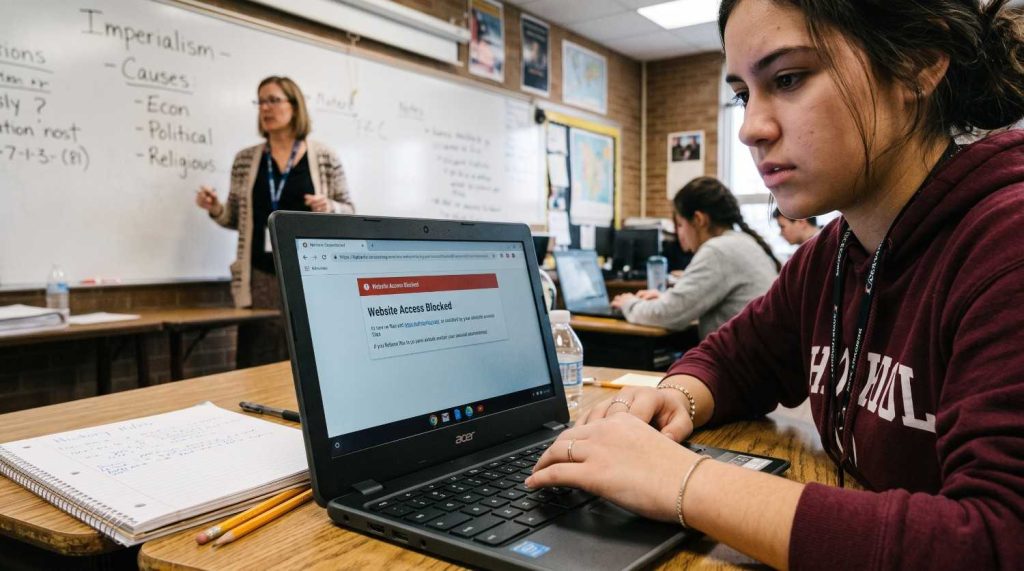
The Chrome extension tools like GoGuardian, Securly, Bark, or Blocksi are force-installed on your school account. When you visit any website, the extension checks it against a category database of millions of sites. If the site is categorized as “Gaming,” “Entertainment,” or “Social Media,” the extension blocks it before the page loads and shows you a block page instead. This happens in real time, every single request.
Google Admin Console URL blocking adds a second layer. Admins can manually add specific domains to a blocklist at the system level. These are blocked even if the extension fails. Admins also disable features students might use to bypass filters: incognito mode is usually turned off, Developer Tools are often locked, and the Chrome Task Manager is blocked so students cannot kill the extension process.
Incognito mode specifically is shut down on most school Chromebooks because it prevents the filter extension from running which is exactly why schools disable it first.
Why Are Game Sites the #1 Blocked Category on School Chromebooks?
Gaming is blocked more than any other content category on school Chromebooks and data confirms it. A GoGuardian analysis of Chromebook activity found that Coolmath Games was the single most-blocked website across school networks, ranking above Facebook, Netflix, and every social media platform.
Schools block gaming sites for three reasons that have nothing to do with the content being inappropriate:
| Reason | Explanation |
| Distraction | Students playing games during class produce measurably shallower learning. Schools block gaming to enforce attention not because the games are harmful |
| Bandwidth | Multiplayer and browser games consume shared network resources. 30 students streaming gameplay simultaneously slows down the network for everyone using Google Classroom or Docs |
| Device policy | School Chromebooks are issued for educational use. Allowing gaming violates the terms of E-rate funding, which requires schools to have an internet safety policy in place |
The filter does not evaluate whether a game is educational or violent. It sees the domain, checks the category label, and blocks or allows based on that label alone. That is why Coolmath Games, a site built entirely on math still gets blocked in many districts.
What Games Are Not Blocked on School Chromebooks?
The game sites most likely to work on school Chromebooks are ones categorized as “educational” rather than “gaming.” Filters classify by category if a site carries an educational label in the filter’s database, it passes through even when gaming categories are blocked.
Here are game sites that frequently pass school Chromebook filters in 2025–2026:
| Site | Why It Sometimes Works | Game Type |
| Coolmath Games | Branded as a math education site; often whitelisted by teachers | Puzzle, strategy, logic |
| Prodigy Math | Categorized as curriculum software, not gaming | RPG-style math |
| Scratch (MIT) | Classified as a coding/education platform | Student-created browser games |
| Code.org | Listed under educational tools; Hour of Code is game-based | Programming games |
| Google Doodle Archive | Hosted on Google.com most school filters never block Google domains | Interactive mini-games |
| Kahoot (Practice Mode) | Classified as an EdTech quiz tool | Quiz-based gameplay |
| ABCya | Explicitly designed for classroom use; often whitelisted by district | Educational games K-8 |
Important: Whether any of these work depends entirely on your specific school’s filter settings. A site that loads at one school may be blocked at another. Filter policies vary by district, grade level, and even by individual teacher permissions.
Why Does the Same Site Work for My Teacher but Not for Me?
School Chromebook filters apply different rules to different Google Workspace accounts. Your teacher’s account belongs to a different Organizational Unit (OU) than your student account. Admins configure separate filter policies for each OU.
A teacher might have YouTube and some educational gaming sites unlocked. A student at the same school on the same Wi-Fi has those same sites blocked. Both are on school-managed Chromebooks but the filter reads the account, not the device, and applies the correct policy for that user type.
This also explains why some sites work at home on your school Chromebook. If your district does not use a cloud-based filter that follows the device off school Wi-Fi, the filter may only apply on the school network. Extension-based filters like GoGuardian do follow the device home but older network-level systems do not. Learn more how cookieclicker is safe.
Frequently Asked Question
Why is Coolmath Games blocked on my school Chromebook if it’s educational?
Coolmath Games is blocked in many districts because the filter software classifies it under “Gaming” rather than “Education,” despite its math branding. Filter tools categorize millions of sites automatically Coolmath’s domain lands in the gaming bucket because most of its content is game-based, even though the games use math. Some school admins manually whitelist it; others do not. If Coolmath is blocked at your school, your teacher can request an exception through the district’s IT department.
What are the best game websites for school not blocked on Chromebooks?
The game sites most likely to work on school Chromebooks are ones built around educational content: Coolmath Games (math-based puzzles), Prodigy Math (curriculum RPG), Scratch by MIT (coding and student-made games), Code.org (programming activities), and the Google Doodle archive. These pass filters more often because filter databases categorize them as educational tools rather than gaming platforms. However, availability varies by school what works in one district may be blocked in another.
How does GoGuardian or Securly work on a school Chromebook?
GoGuardian, Securly, and similar tools are Chrome extensions force-installed onto your school account through Google Admin Console. You cannot disable or remove them as a student. When you visit any website, the extension intercepts the request, checks the destination URL against a category database, and either allows or blocks the connection. The extension also runs in incognito mode on most school devices (admins force extensions to run there too) and sends browsing activity to the school’s dashboard in real time. Some districts also pair these extensions with a cloud proxy that filters all traffic, not just browser activity.
Can I play games on my school Chromebook if I use my phone’s hotspot?
Switching to your phone’s mobile hotspot bypasses network-level filters but does NOT bypass extension-based filters. If your school uses GoGuardian, Securly, or another Chrome extension filter, that filter is installed on your browser not your network. It follows you regardless of which internet connection you use. The only way mobile data helps is if your district uses an older, network-only filtering system that has no device-level component. Most modern school districts have moved to cloud-based or extension-based filters that work anywhere.
Why does my school block games but not during lunch or free periods?
Some districts use time-based filter schedules inside Google Admin Console. The same filter can have one set of rules during class hours (strict) and a different set during lunch or after school (relaxed). If your school uses this approach, gaming sites may automatically unblock between certain hours. Other schools keep the same filter rules all day but allow certain sites through teacher-requested whitelists. If your school does not use time scheduling, the same rules apply at 8 AM and 3 PM.
About The Author

Hey, I’m Jody! I’m a web developer by profession and a passionate gamer from heart. Over the years, I’ve combined these two worlds by creating custom mods of mini web based games and tools to assist in those game so game's community members can enjoy enhanced user experience. Cookie Clicker Unblocked is also one of such project, created out of my love for the Cookie Clicker game.
I’ve released 7 versions to date, built dedicated cookie calculating tool, and even published a detailed guide to help players navigate the game like a pro. Let’s make gaming even more fun together!
- Jody Pressman

- Jody Pressman
- Jody Pressman
- Jody Pressman
- Jody Pressman
- Jody Pressman
- Jody Pressman
- Jody Pressman
- Jody Pressman
- Jody Pressman
- Jody Pressman
- Jody Pressman